Introduction
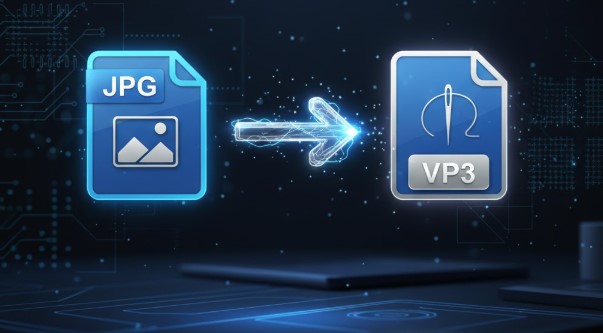
So, you’ve got a Baby Lock embroidery machine and a great idea saved as a JPG file. Whether it’s a custom logo for a small business or a personalized design for a gift, you’re ready to stitch. But there’s a common hurdle: your Baby Lock machine speaks a specific language, reading files in the VP3 format, not standard image files. The process to Convert JPG to VP3 can seem confusing at first, but it’s a manageable skill to learn.
This guide is designed for absolute beginners, breaking down exactly what you need to know to successfully turn your JPG image into a stitch-ready VP3 file, avoiding frustration and wasted materials.
Convert JPG to VP3: Understanding What ‘Conversion’ Really Means
First, let’s clear up a key point of confusion. You cannot simply “convert” a JPG to VP3 like changing a Word document to a PDF. A JPG is a flat picture made of pixels. A VP3 file is a complex set of coded instructions that tells your embroidery machine exactly where to move the needle, what type of stitch to make, what color thread to use, and in what order to do everything.
The technical process of creating these instructions from an image is called digitizing. It’s a specialized skill that combines art and technical knowledge. Therefore, when you want to convert JPG to VP3, you are actually looking for a way to digitize your image into the VP3 format that Baby Lock machines use. Understanding this distinction is the first step toward success.
Convert JPG to VP3: Method 1 – Using Baby Lock Software (The Direct Route)
The most straightforward method for Baby Lock owners is to use software designed specifically for your machine ecosystem. These programs allow you to import a JPG and create a VP3 file.
Recommended Software:
- Baby Lock Embroidery Works: This is the flagship software for serious hobbyists and small businesses. It offers full digitizing capabilities, meaning you can manually trace your JPG and assign stitch types, densities, and sequences to create a VP3 file from scratch.
- Baby Lock Artistic Canvas: Often bundled with newer machines, this is a more user-friendly program. It includes auto-digitizing functions and simpler editing tools, making it a good starting point for beginners.
How This Method Works:
- Import your JPG into the software.
- Use the software’s tools to trace the design elements. In Artistic Canvas, you might use an “Auto-Punch” feature. In Embroidery Works, you would manually draw stitch areas.
- Assign stitch types (like satin for outlines or fill for large areas).
- Adjust settings like stitch length and density.
- Save or export the final design as a VP3 file to transfer to your machine via USB.
Pros:
- Perfect Compatibility: Guaranteed to work seamlessly with your Baby Lock machine.
- Creative Control: You manage the entire design process.
Cons:
- Cost: Professional software like Embroidery Works is a significant investment.
- Learning Curve: Digitizing is a skill that takes time and practice to master.
Method 2: Using Professional Digitizing Services (The Hassle-Free Expert Solution)
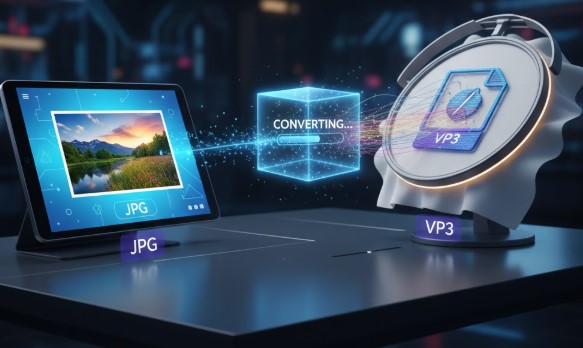
If your project is for a customer, a special gift, or you simply want guaranteed professional results, using an online digitizing service is the most reliable path. This is often the best way for beginners to get a high-quality VP3 file.
How It Works:
You upload your JPG file to a service’s website, specify details like size and fabric, and a professional digitizer creates the VP3 file for you. You download it within 24-48 hours.
What to Look For in a Service:
Ensure the service explicitly lists VP3 as an output format. Many top services do. When ordering, you will select “VP3” as your target format.
Pros:
- Professional Quality: Experts create files with proper stitch structure, pull compensation, and density for flawless stitching.
- Saves Time & Learning: You get a perfect file without learning complex software.
- Includes Revisions: Good services offer free tweaks based on a test stitch.
Cons:
- Cost Per Design: Typically ranges from $10 to $40.
- Not Instant: Requires a short turnaround time.
Method 3: Using Third-Party Embroidery Software
Other major embroidery software brands can also create VP3 files. If you already own one or are considering a broader software investment, this is a viable option.
Examples:
- Hatch Embroidery by Wilcom: A very popular, user-friendly option that supports VP3 export.
- Embird: A modular software that supports many formats, including VP3.
- Brother PE-Design: While geared toward Brother machines, it can often export to VP3.
The process is similar: import a JPG, digitize the design using the software’s tools, and then export or “save as” a VP3 file.
Method 4: Online Auto-Converters (A Word of Caution)
A quick online search will reveal websites that claim to “instantly convert JPG to VP3 for free.” Extreme caution is advised with these tools.
These are automated converters that use a basic algorithm to guess the stitch placement. They lack the nuanced understanding of digitizing. Results are almost always poor, leading to:
- Excessive thread breaks
- Poor coverage and uneven stitches
- Design distortion and puckering of fabric
Only use these for the simplest, non-critical experiments where quality does not matter.
Convert JPG to VP3: Your Step-by-Step Action Plan for Beginners
Follow this simple plan to go from your JPG to a stitched design:
- Choose Your Method:
- If you need more control and regularly create designs, Baby Lock Embroidery Works is a strong option.
- For one-off, professional results, choose a digitizing service.
- For simple personal experiments, try the tools in Artistic Canvas.
- Prepare Your JPG File: Start with the best image possible. A clean, high-resolution logo with clear edges works far better than a blurry, low-quality picture.
- Provide Key Details (If Using a Service): Be specific. Tell them:
- Desired Size: “3 inches wide.”
- Fabric Type: “Cotton t-shirt” or “Twill cap.” This changes how the file is digitized.
- Any Special Notes: “Make the text bold” or “This is the most important element.”
- THE CRITICAL STEP: Always Do a Test Stitch. Before you stitch on your final project, run the VP3 file on a scrap piece of the same fabric you plan to use. Check for thread tension, registration, and overall look.
- Make Adjustments: If something isn’t perfect, use software edits or request a revision from your digitizing service. Provide clear feedback from your test.
Common Beginner Mistakes to Avoid
- Skipping the Test Stitch: This is the #1 mistake. It can ruin an otherwise perfect final garment.
- Using a Low-Resolution Image: A tiny, pixelated JPG will create a poor embroidery design.
- Ignoring Fabric Type: A file digitized for a thick towel will not stitch well on a delicate polo.
- Expecting Perfection from Free Tools: If the project is important, invest a few dollars in a professional service. It’s cheaper than wasting expensive materials.
Conclusion: Your Path from Image to Embroidery
Learning how to convert JPG to VP3 is an essential step in unlocking the full creative potential of your Baby Lock embroidery machine. While the process is technically digitizing, not a simple file conversion, it is entirely achievable. As a beginner, your safest and most effective path is to partner with a professional digitizing service that offers the VP3 format. This guarantees a quality file, saves you from a steep learning curve, and ensures your projects look professional from the very start.
Remember, the goal is a beautiful, durable stitched design. By starting with a high-quality image, choosing the right conversion method for your needs, and never skipping the test stitch, you set yourself up for success. Each perfectly finished project builds your confidence and skills. Now, take that JPG and start creating something amazing.